Table of Contents
ClickLeadz integrates with MailerLite to automatically send Facebook group leads to your email lists. This guide shows you how to connect MailerLite in minutes.Before you begin, please ensure that:
- You’ve installed the ClickLeadz Chrome extension
- You’ve connected your Facebook group and created a spreadsheet for your leads
- You’ve already set up membership questions for your Facebook group
Once these are ready, follow the steps below to connect ClickLeadz with MailerLite.
Step 1 — Log in to Your MailerLite Account #
- Go to your MailerLite dashboard.
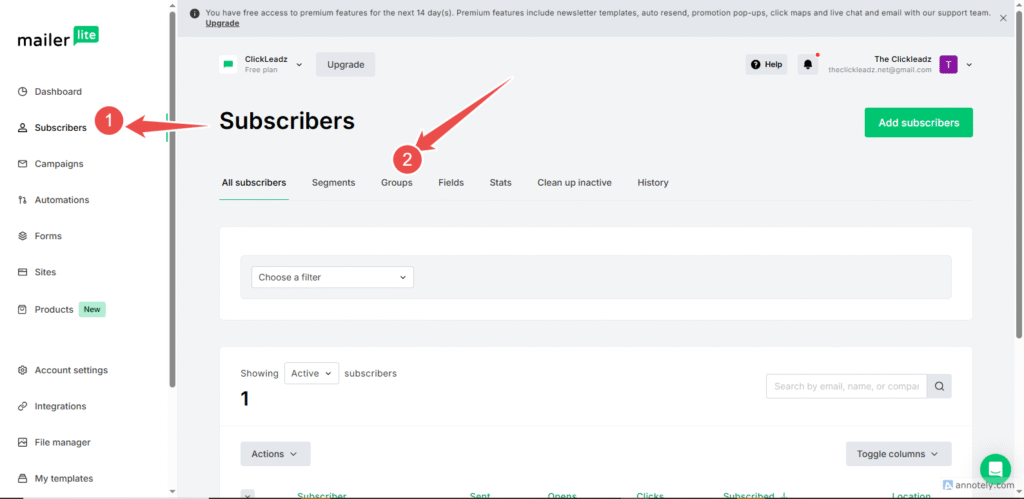
- From the left-hand menu, click Subscribers.
- Select Groups.
Step 2 — Create a Group #
- Click Create group.
- Enter a name for your group (this will receive your ClickLeadz leads).
- Click Save.
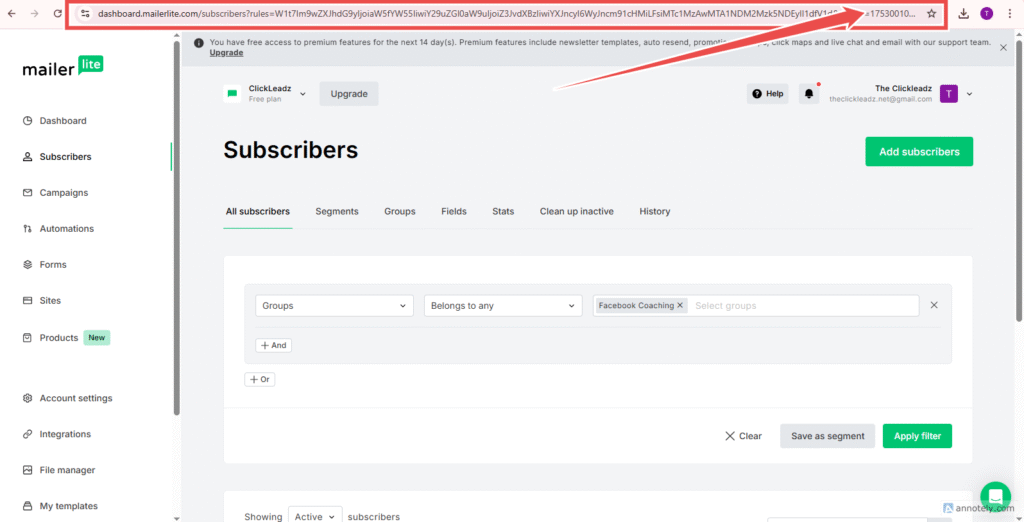
Tip: Click on the view group and copy the enter url in the url bar thats where you will get your group ID
Step 3 — Get Your MailerLite API Key #
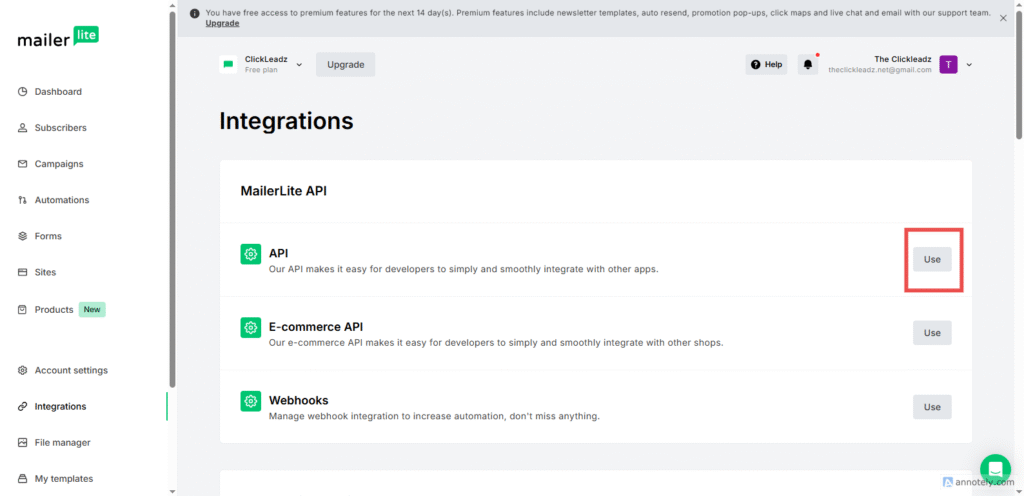
- Click Integrations from the left-hand menu.
- Select API.
- Click Generate new token.
- Name the token (e.g., ClickLeadz Integration).
- Copy the API key and save it securely.
Step 4 — Open Your ClickLeadz Extension #
- Click the ClickLeadz icon in the top-right corner of your Chrome browser.
- Find your connected Facebook group.
- Click the Settings (⚙️) icon next to the group.
- Under Autoresponder Integration, choose MailerLite.
Step 5 — Enter Your MailerLite Credentials #
- Click Credentials inside the integration window.
- Paste the following:
- MailerLite API Key
- Group ID
- Click Verify & Update.
✅ You’ll see a green confirmation message once the integration is successful.
Integration Complete! #
Your ClickLeadz account is now successfully connected to MailerLite.
From this point onward:
- Every new member you approve through ClickLeadz will be automatically added to your MailerLite group
- Member details will be saved in your connected Google Sheet
- All leads will appear in your ClickLeadz dashboard for tagging, campaigns, and follow-ups
Related Articles #
- How to Integrate ClickLeadz with Mailchimp
- How to Integrate ClickLeadz with GetResponse
- How to Integrate ClickLeadz with ActiveCampaign
- How to Integrate ClickLeadz with ConvertKit


