Table of Contents
Before you begin, please ensure that: #
- You’ve installed the ClickLeadz Chrome extension.
- You’ve connected your Facebook group and created a spreadsheet for your leads.
- You’ve already set up membership questions for your Facebook group.
Once those are ready, follow these steps to connect ClickLeadz with GetResponse.
Step 1 — Log into Your GetResponse Account #
- Go to your GetResponse dashboard.
- Click on Lists from the main navigation menu.
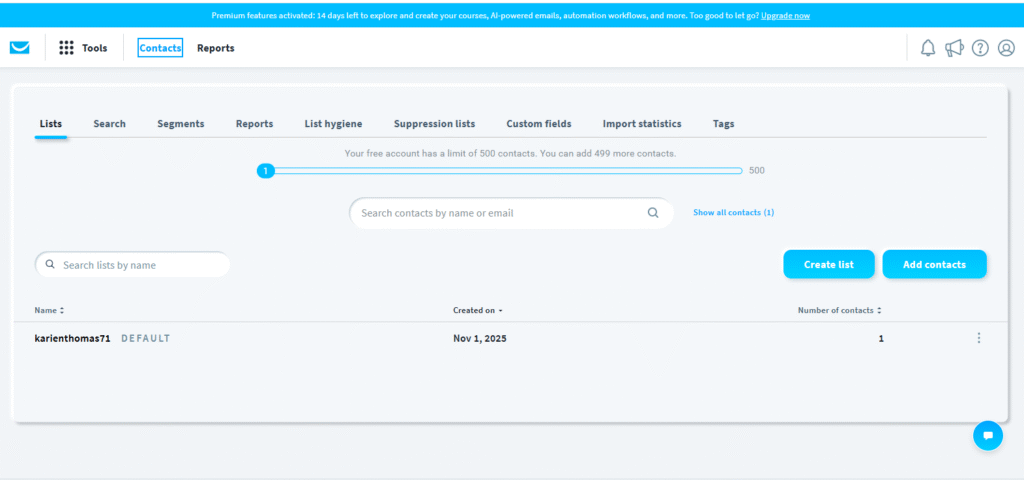
Step 2 — Create a New List #
- Select Create List.
- Enter a unique name for your list, following the naming format required by GetResponse.
- Save your new list.
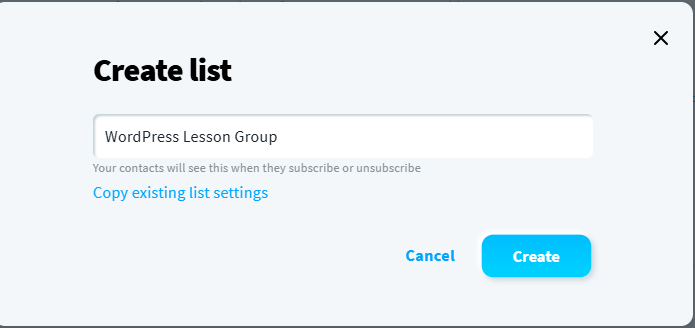
💡 Tip: Copy your List Name and keep it handy — you’ll need it shortly for the integration setup.
We recommend saving it in Notepad (Windows) or TextEdit (Mac) for quick access.
Step 3 — Get Your GetResponse API Key #
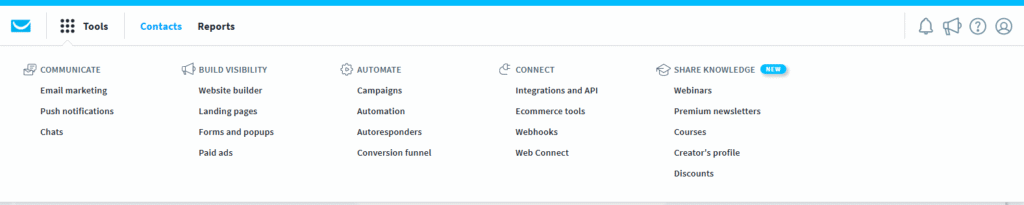
- In a new browser tab, search for “GetResponse API Key” or go directly to
My Account → Integrations & API → API. - Click Generate API Key.
- Enter a name for your key (e.g., “ClickLeadz Integration”) and confirm.
- Copy your new API Key and save it in your notes.
Step 4 — Open Your ClickLeadz Extension #
- Click the ClickLeadz icon in the top-right corner of your Chrome browser.
- Next to your connected Facebook group, click the Settings (⚙️) icon.
- Under Autoresponder Integration, choose GetResponse from the list.
Step 5 — Enter Your Credentials #
- In the ClickLeadz integration window, click Credentials.
- Copy and paste the following from your notes:
- List Name
- API Key
- Click Verify & Update.
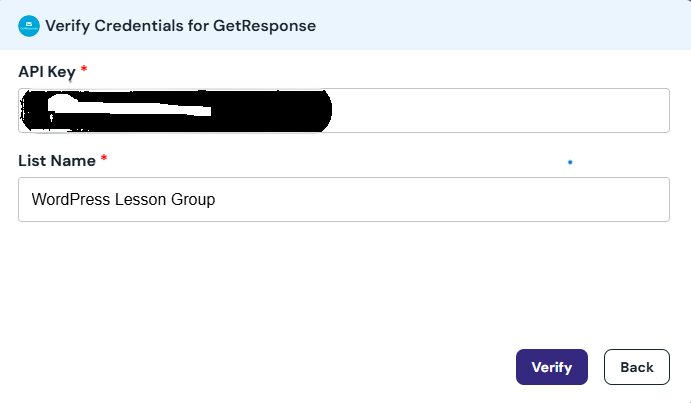
Once verified, you’ll see a green confirmation message at the top of the page.
Integration Complete! #
Your ClickLeadz account is now successfully connected to GetResponse.
From this point onward:
- Every new member you approve through ClickLeadz will automatically have their email added to your GetResponse list.
- Their full details will also be stored in your connected Google Sheet and visible in your ClickLeadz dashboard.
Related Articles
- How to Integrate ClickLeadz with Mailchimp
- How to Integrate ClickLeadz with ActiveCampaign
- How to Integrate ClickLeadz with ConvertKit
- How to Integrate ClickLeadz with Sendinblue


